MS Outlook stores a synchronized copy of your mailbox from your IMAP, Office 365, and Exchange or Outlook.com accounts on your local computer storage as an offline file. This file is called Offline Outlook Data file (.ost). Here, .ost file is helpful to access all your previously saved emails, contacts, calendar, tasks etc. whenever a connection to the mail server is not available or internet is disconnected. You can also read and compose emails, create calendar entries or add contacts to this .ost file. All these changes in the .ost file will automatically synchronize with the server when the internet connection restored. Until then, emails won’t be sent.
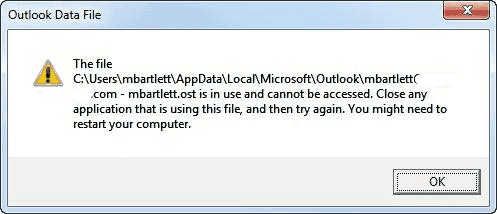
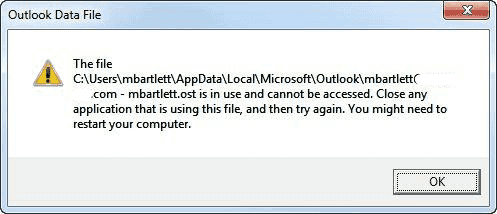
This is why the .ost file is very important for Outlook users and so, any situation is worst if Outlook fails to access data from ost file due to different reasons. This is so annoying if any Outlook error gets an error message “The file C:\Users\Name\AppData\Local\Microsoft\Outlook\xxxx@email.com.ost is in use and cannot be accessed”.
Reasons for this error message
- More than one user trying to access the .ost file.
- Problem with the internet
- Any other application conflicts with Outlook.
- Synchronization issue of the .ost file with the mail
- Corruption or damage in ost file.
Fixes for this error message
According to the error message “.ost file is used and cannot be accessed” the first solution comes to mind is to close the other application which is using the .ost file. But, most of the times this solution doesn’t work and Outlook user-facing same error again and again. Further, this article describes more accurate methods to fix this error with ost file.
1st Method- Use Inbox Repair Tool to repair ost file:
Microsoft Office comes with an inbuilt tool called Inbox Repair Tool or SCANPST.exe (In older versions of office there is a separate SCANOST.exe tool to repair ost file) to repair corrupt Outlook data files. You can find this tool in the Office installation folder.
- Run SCANPST.exe and open Inbox Repair Tool.
- Browse and select the .ost
- Click on Start to scan can find the error with the file.
- Now click on Repair to start the repairing
- After the repair process complete click OK.
Note: This utility unable to fix this error always because this tool is only capable to repair some minor damages in ost file.
2nd Method- Turn off Cached Exchange Mode:
By default, Cached Exchange Mode is on which enables Outlook to save a copy of your mailbox as ost file. Hence, sometimes turning off Cached Exchange Mode fix this error.
- Go to File > Account Settings > Account Settings in Outlook.
- Here select your email account and click on
- Under Offline Settings uncheck the Use Cached Exchange Mode.
- Exit and restart Outlook.
3rd Method- Convert inaccessible ost file to an accessible pst file:
If the first two method fails to resolve this error then the best and most accurate solution is to convert the .ost file to the .pst file. This solution ensures the fix the unable to access ost file error. Conversion of ost to pst file is easily possible with a third-party OST to PST Converter. These tools are very advanced can capable to repair and recover any type of major corruption in the .ost file. After recovering of mailboxes from corrupt ost file, this software can convert .ost file to a pst file which is also an Outlook data file type. As only a pst file is directly importable in Outlook you can easily open this pst file with outlook without any getting any error message and access all your emails and other data.
Conclusion
Microsoft Office Outlook is one of the most used email clients and its users generally face the error message of “The file email.ost is in use and cannot be accessed”. In this article, we are describing three different methods to get rid of this error in Outlook. As his first two methods are not fully successful to fix this error and work only in minor error cases so, we in troublesome situations it is r recommended to use a third-party tool called OST to PST Converter to repair errors with .ost file and fix this error in MS Outlook.